Navigator
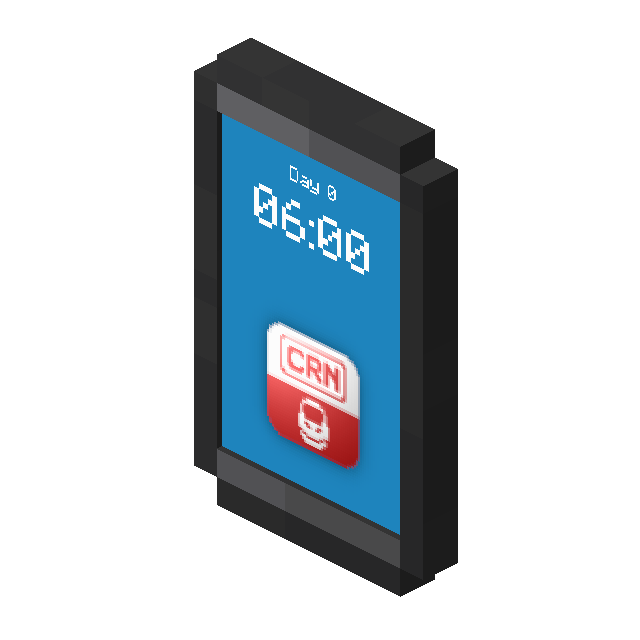
The Navigator is an Item allowing you to look up train connections to get from one station to another.
It also allows you to edit the Global Settings.
Usage
Right-clicking with the Item in hand opens up a GUI where you can set the start station and target station.
The button next to the input field for the Start station inputs the closest station at your current station, where the button below it starts a search. The double arrows between the text bars allow to swap the start and target station.
At the bottom can buttons be found for closing the GUI, opening the Global Settings, open saved routes and getting available Train lines for a specified Station.
Once a target and start station have been set, searching will display any connections that allow to travel between these stations.
Clicking any entry will display more detailed info, including the option to pin it to your Screen.
Global Settings
The Global Settings allow you to setup Station Tags, blacklist Train Stations and Trains, setup Train Categories and setup Train lines.
Train Station Tags
Train Station Tags allow you to group together multiple station under a main name and also configure a Platform associated with it.
Example: Creating the Station Tag Spawn and adding Spawn 1 with Platform number 1 and Spawn 2 with Platform Number 2 will allow you to have Spawn 1 and Spawn 2 included when searching for routes from or to Spawn. In addition will any Advanced Display configured to Platform Display show the platform number for any matching Station name (i.e. Station 1 will have the display show 1 on one of its top corners).
Train Station Blacklist
The Train Station Blacklist allows to blacklist individual stations.
Any station added to this list will not show up in any search suggestions in the Navigator.
Train Blacklist
The Train Blacklist allows you to blacklist individual trains.
Any Train added to this list will not show up in the Navigator, nor on any Advanced Display showing trains. Any routes that require to use a blacklisted train will also not be suggested to the player.
Warning
The Blacklist uses the Train Name, not its UUID! This means any train with the same name will also be blacklisted!
Train Category
The Train Category allows you to define Categories (i.e. Passenger Trains, Cargo Trains, etc.). Train Categories can be used by a player in the navigator to filter routes based on the provided categories.
A Train Category can be applied to a Train throught the Train Schedule Section Action in a Train Schedule.
Train Lines
The Train Lines option allows to set up individual Train Lines. This allows you to group together individual trains and to override their display name amongst other settings.
A Train Line can be applied to a Train through the Train Schedule Section Action in a Train Schedule.
Each Train Line can have a custom background color configured, which can be displayed in the Navigator and Advanced Displays if the Show train line color option is enabled.
Obtaining
Crafting
| Ingredients | Crafting recipe |
|---|---|
| Andesite Alloy + Copper Sheet + Glass Pane + Iron Sheet + Precision Mechanism |
 12

|
Advancements
| Icon | Advancement | In-game description | Actual requirements (if different) |
|---|---|---|---|

|
Thank you for traveling | Craft a Navigator to search for train connections from one train station to another. | Have a Navigator in your inventory. |