Advanced Displays
All Advanced Display Blocks redirect to here.
Advanced Displays are blocks that appear similar to monitors and can display data similar to a Display Board from Create.
Usage
Placed Advanced Displays of the same type will connect to each other horizontally and vertically (depending on the selected display variant) when forming a rectangle.
- Right-clicking with a Wrench opens a GUI allowing to configure the display.
- Right-clicking with a block applies it to all sides except the front side (similar to Copycats).
- Shift + Right-clicking with a Wrench will remove the copycat block or destroy the display (if it was empty).
The "Double-sided" option toggles whether the content is displayed on both sides or only on the front.
More options are explained below.
Train Destination
Displays information about the train's next stations and final station.
This option is recommended for displays on the outside of a train to show to players information about where it comes from and where it is heading.
Passenger Information
Displays information about a trains next stops and optional statistics.
This option is recommended for displays inside a train.
Platform Display
Allows displaying info about an arriving/departing train such as the ingame time for when it will arrive/depart.
This option is recommended to be used at station platforms and requires data to be provided from a Display Link connected to a Station.
Glob Patterns supported
Glob Patterns can be used to include multiple stations. Some examples:
Station *: Include any Station starting withStationStation [1-3]: Include any Station with a name starting withStationfollowed by a number from 1 to 3.
Departure Board
Displays all trains that arrive at/depart from a specified station.
This option is recommended to be used as a general info board for arrivals and departures of trains at a station and requires data to be provided from a Display Link connected to a station.
Glob Patterns supported
Glob Patterns can be used to include multiple stations. Some examples:
Station *: Include any Station starting withStationStation [1-3]: Include any Station with a name starting withStationfollowed by a number from 1 to 3.
Static Text
Allows to display static text.
The provided text can either be a simple String or a supported json Text component format. The Rich Text option allows defining up to 50 separate text lines, each with own customization settings, like scaling, offset, etc.
Static text also supports placeholders to display dynamic data. See Placeholders for more information.
Other data sources
The Advanced Displays are also capable of displaying data from other sources, such as boiler status. Please note, however, that the format is very simple, and the information is presented as plain static text. The Advanced Displays are optimized and designed for trains and are not meant to be used for other purposes.
Options
Advanced Displays provide various options for their different display types.
Below are all options available. Unless stated otherwise are these options available for all display types.
Font Color/Background Color
Allows to set the Text and Background color to display.
Only the pre-made colors can be selected.
Carriage Index Offset
Available for Train Destination (Detailed mode) and Passenger Information (Detailed with Schedule mode)
Allows to offset the displayed carriage number by the specified value.
When Overwrite index is enabled will the provided number instead be used as the value to display.
Show 'Do not board' text
Available for Train Destination and Passenger Information
When enabled, displays a Do not board message whenever the train reaches the final stop in its schedule. This setting is ignored if the train is about to enter a non-navigable Schedule Section.
Show train line color
Sets whether the train line color, if any, should be displayed.
The train line color is configured through the global settings and applied through the Schedule Section option in a Train Schedule.
Train Name Width
Available for Train Destination (Compact and Extended mode), Platform Display (Focus and Table mode) and Departure Board
Sets the max width that the displayed train name should have.
Any text beyond the max width will result in the text scrolling.
Platform Width
Available for Platform Display (Focus and Table mode)
Sets the max width that the displayed platform should have.
Any text beyond the max width will result in the text scrolling.
Stopovers Section Width
Available for Departure Board
Sets the max width that the displayed stopovers should have.
Any text beyond the max width will result in the text scrolling.
Info Section Width
Available for Departure Board
Sets the max width that any info about the train (i.e. delays) should have.
Any text beyond the max width will result in the text scrolling.
Time Display
Available for Passenger Information (Detailed with Schedule mode) and Departure Board
Sets the time displayed for when the train arrives at the (next) station.
Available options are ABS (default) for absolute time (i.e. 13:00) or ETA for Estimated Time of Arrival (i.e. 1 min). Both time are ingame based.
Show train stats
Available for Passenger Information
Sets whether Train statistics such as speed should be displayed.
Show exit direction
Available for Passenger Information
Sets whether the display should display possible exit directions using an arrow.
The direction will be displayed when "Next Stop: ..." is shown.
Show next connections
Available for Passenger Information
Sets whether the display should display connections for the station it arrives at.
Show train multiple times
Available for Passenger Information, Departure Board
Sets whether the same train can be displayed multiple times in the next connections (i.e. when arriving from different sides).
Train Text Component
Sets what text component should be displayed.
| Option | Description |
|---|---|
All |
Show both Train Name and Destination. |
Train Name only |
Default. Only display the Train name. |
Destination only |
Only display the Train's destination. |
Show time and date
Available for Passenger Information (Scrolling text mode)
Sets whether the current ingame time and number of ingame days since world creation should be displayed.
Train Stop Display Type
Sets what kind of train stop should be displayed.
| Option | Description |
|---|---|
All |
Displays Arrivals and Departures. |
Arrivals only |
Only displays Arrivals. |
Arrivals preferred |
Prioritizes Arrivals, but falls back to showing Departures otherwise. |
Departures only |
Only displays Departures. |
Departures preferred |
Prioritizes Departures, but falls back to showing Arrivals otherwise. |
Displayed Text
Available only for Static Text
Allows you to set the text that should be displayed on the Display.
The input field accepts normal text, but also Chat Components.
X/Y Position
Available only for Static Text (Rich Text mode)
Sets the X and Y position of the text.
The X offset is based on the current Text Alignment with Right alignment using the left side of the text as anchor point, while the Y offset uses the top of the Display Area as anchor point.
Text Alignment
Available only for Static Text (Rich Text mode)
Allows to set the text to either be on the left, center or right of the Display.
Minimum X Scale/X Scale/Y Scale
Available only for Static Text (Rich Text mode)
Sets the Minimum X scale and maximum X and Y scale for the text.
The text will be scaled as close as possible and if not possible, apply the configured Boundary Behaviour to the text.
Text Max Width
Available only for Static Text (Rich Text mode)
Sets the max width of the text. The text will be scaled as close as possible and if not possible, apply the configured Boundary Behaviour to the text.
Boundary Behaviour
Available only for Static Text (Rich Text mode)
Sets how text going beyond the Max text width should be handled.
| Option | Description |
|---|---|
Cut Off |
Cuts off any excess text. |
Scale/Scroll |
Scales the text as good as possible and otherwise makes it scroll. |
Always Scroll |
Makes the text scroll, no matter its actual width. |
Label Background Color
Available only for Static Text (Rich Text mode)
Sets the background color that should be used for the text. Custom colors using the Hex Code format are supported.
Activating Full Size will make the color fill the entire configured area of the text instead of just the text itself.
Obtaining
Crafting
| Ingredients | Crafting recipe |
|---|---|
| Andesite Alloy + Display Board + Sturdy Sheet |


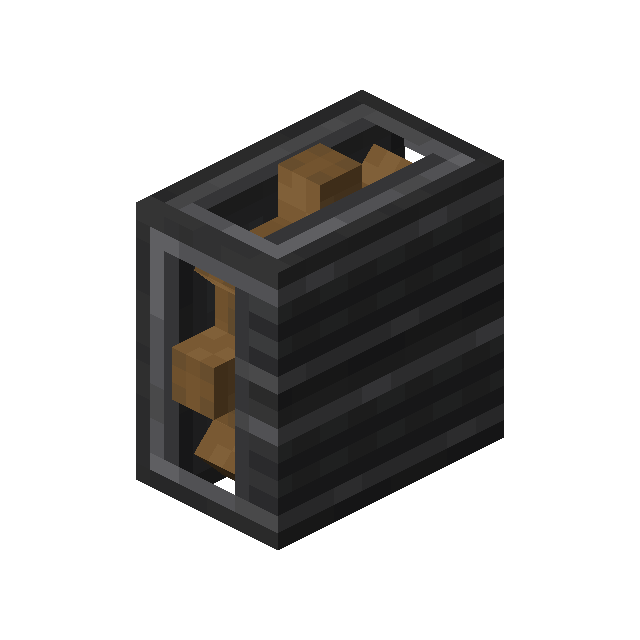
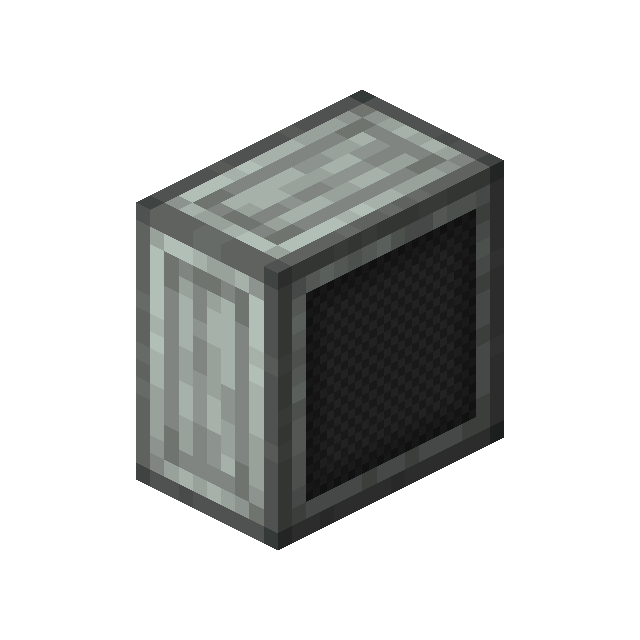 6

|
| Advanced Display Board + Zink Ingot |

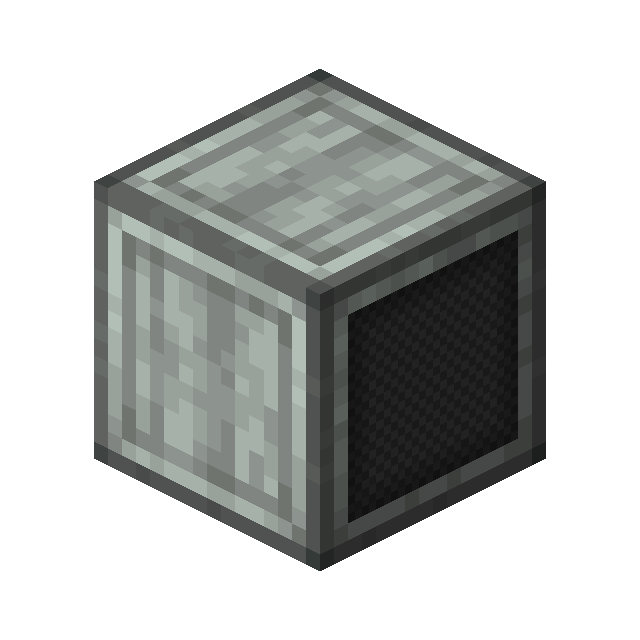
|
| Advanced Display Board |
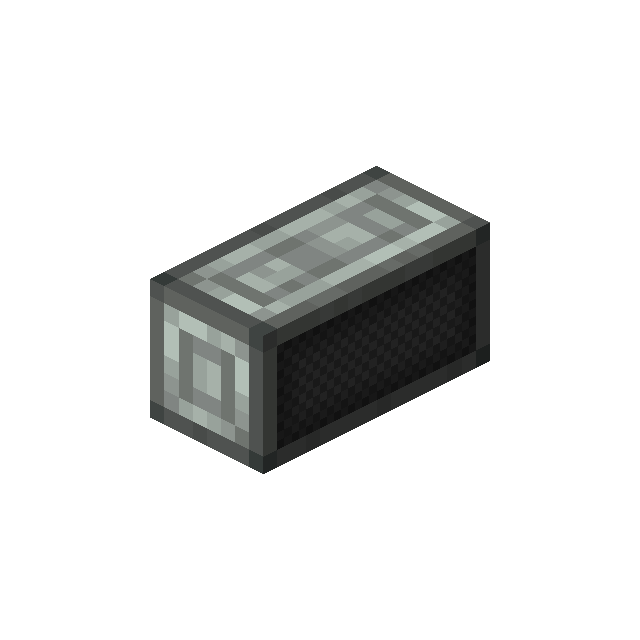 4
|
| Advanced Display Board |
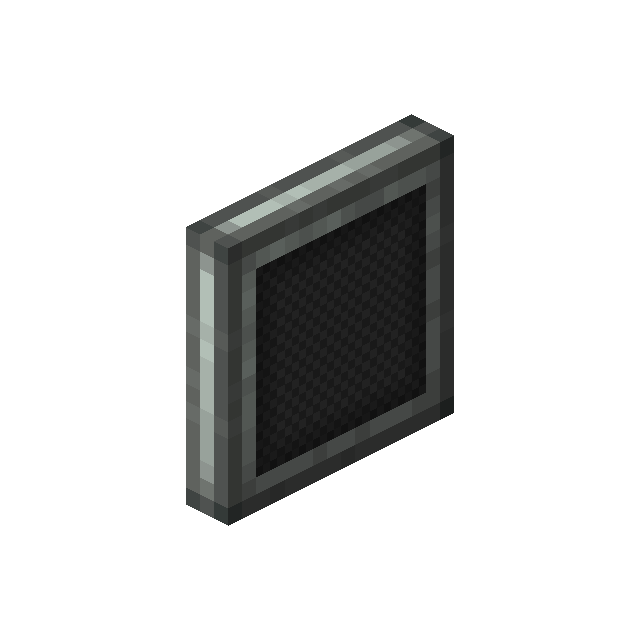 8
|
| Advanced Display Block |
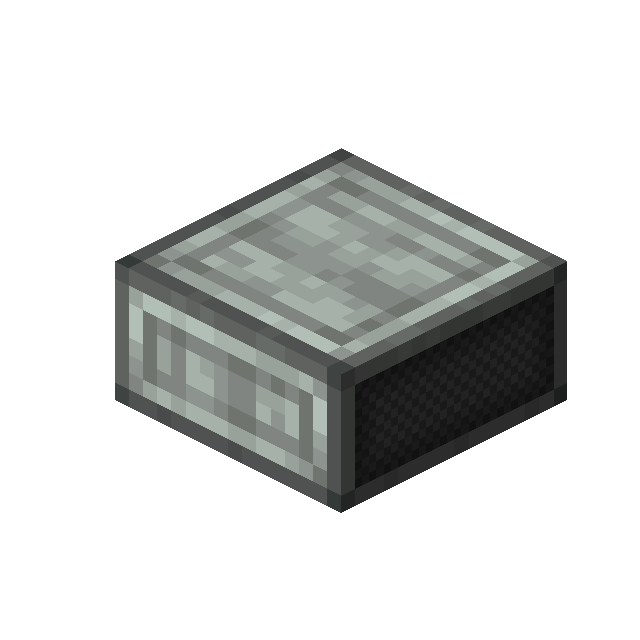 6
|
| Advanced Display Panel |
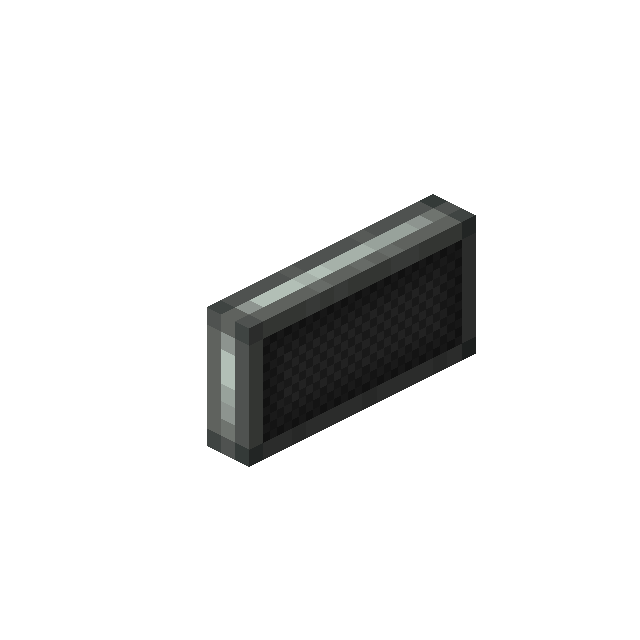 6
|
| Small Advanced Display |
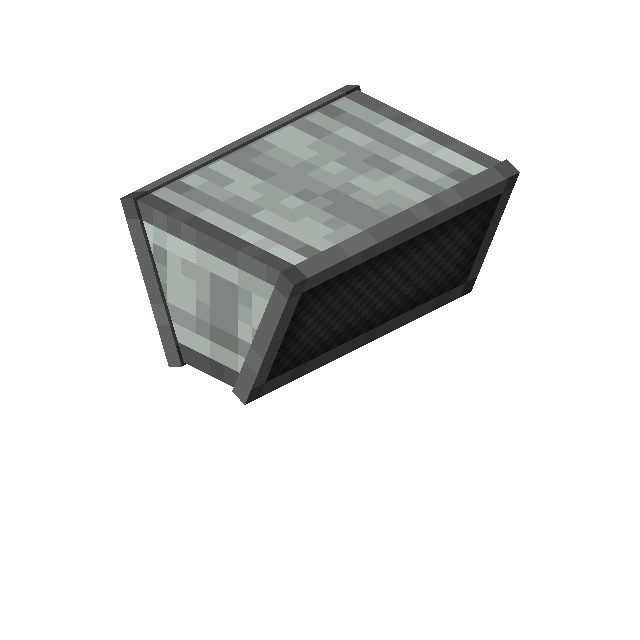 3
|
Advancements
| Icon | Advancement | In-game description | Actual requirements (if different) |
|---|---|---|---|

|
Not quite 4k | Upgrade your display boards to display more information and even place them in your train. | Have an Advanced Display Board in your inventory. |