Traffic Sign Workbench
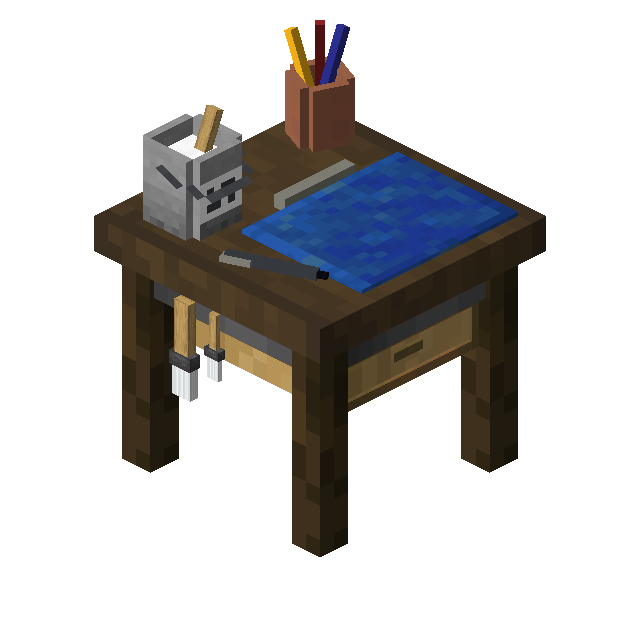
The Traffic Sign Workbench is a block that allows you to create designs for Traffic Signs using a Pattern Catalogue.
Usage
After placing the Traffic Sign Workbench, right-clicking it will open a UI.
On the top-left is a slot where you place your Pattern Catalogue, while on the top-right is a slot for an optional Color Palette.
In the center is a large area appearing similar to a Pattern Catalogue. Placing a Pattern Catalogue in its designated slot will display the 1st saved pattern, if any and allows you to cycle through all saved ones.
Additionally will buttons appear on the left-hand side which allow to add, edit and delete Patterns.
Pressing the button to add a new Pattern shows a set of buttons that can be pressed to to select the form of the traffic sign, which will also open the Painting UI where you are able to paint the Traffic sign, or load one of the available defaults.
Pressing the Edit button will open the currently selected Pattern in the same painting UI.
Paint UI
When opening a new Pattern or editing an existing one will a Painting UI open consisting of a column of buttons on the left side, the main canvas in the center and a Button on the right side to select the color.
When the Color Palette was added are also 7 additional buttons shown on the right side, allowing to save or load stored colors to/from it.
The Canva's appearance depends on the selected Traffic Sign shape, but is always empty/transparent (unless you edit an existing Pattern). Underneath the canvas is a textbox allowing you to set the name of the Pattern. By default is it set to "Unnamed Sign"
The buttons on the left side are from top to bottom:
- Draw: Main tool that can be used to draw individual pixels on the canvas.
- Eraser: Erases pixels you click on.
- Pick Color: Selects the color of the pixel you click on the canvas.
- Fill Area: Fills a connected area with a color
- Load Texture...: Opens a UI where you can chose a pre-existing texture, or load your own image.
- Save and Close: Saves the Pattern and closes the UI.
- Discard and Close: Closes the UI without saving the Pattern.
Obtaining
Crafting
| Ingredients | Crafting recipe |
|---|---|
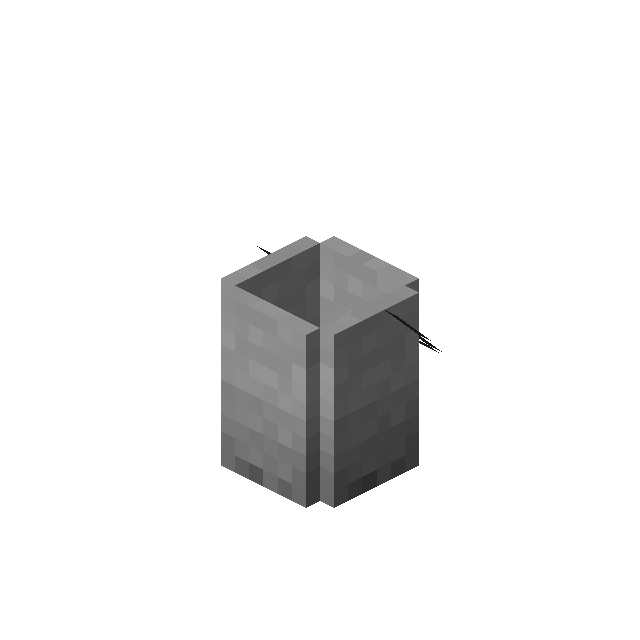
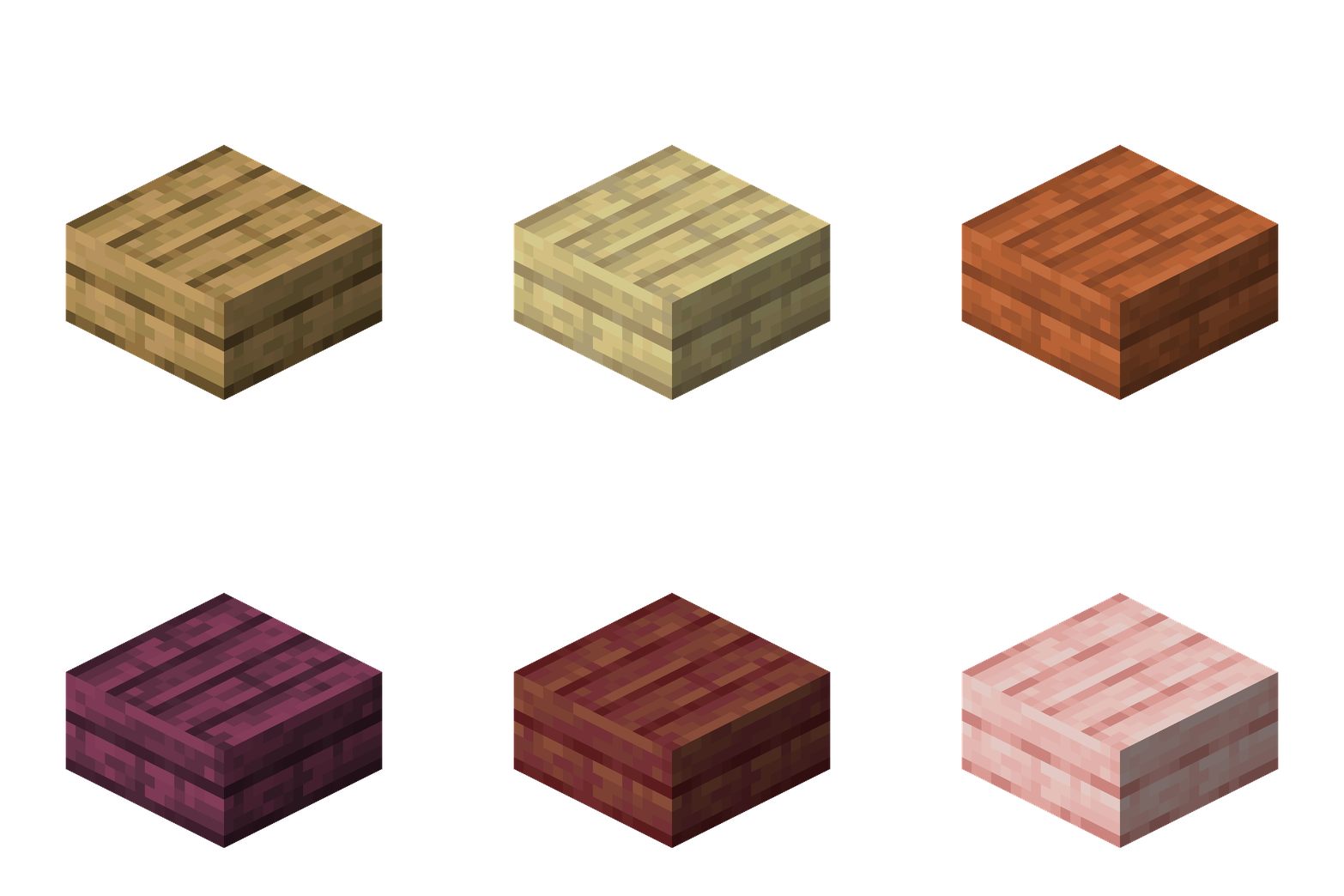
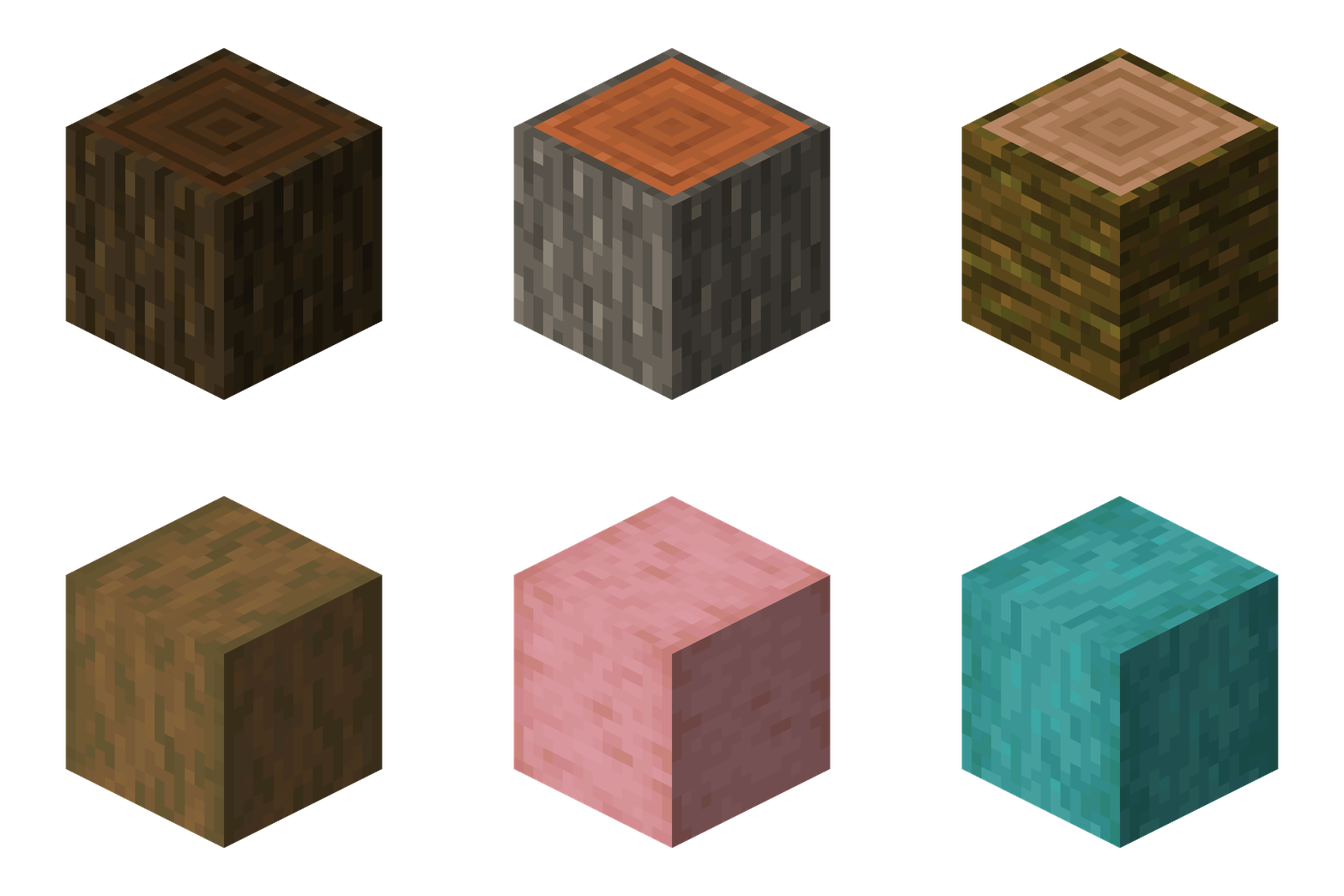
| Any Log + Any Wooden Slab + Flower Pot + Iron Nugget + Paint Brush + Paint Bucket |




|
Advancements
| Icon | Advancement | In-game description | Actual requirements (if different) |
|---|---|---|---|

|
Graphics Designer | Place a Traffic Sign Workbench and start drawing your own traffic sign textures. | Place a Traffic Sign Workbench. |