Traffic Light Controller
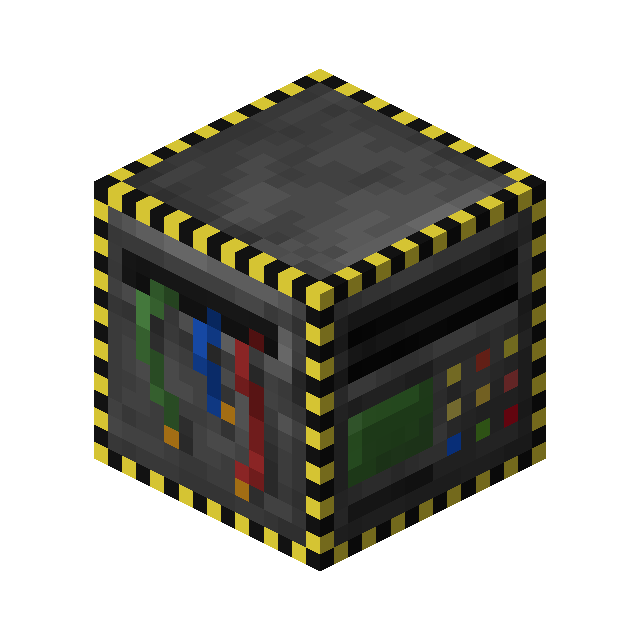
The Traffic Light Controller is a block that allows you to handle multiple Traffic Lights.
Functionality
Once placed, the Traffic Light Controller can be configured to handle and update connected Traffic Lights based on their configured IDs.
This requires them to be linked through the Traffic Light Linker.
The Traffic Light Controller can be configured by right-clicking it with a Wrench.
Traffic Light Schedule
The Edit Traffic Light Schedule... button will open a GUI that is similar to one used in the Traffic Light itself to configure its schedule.
- The top-left button can be clicked to cycle through the activation type, which can be None (Default), On Request and Redstone.
- The top-right button can be clicked to toggle whether the configured schedule should be looped or only run once when activated.
- The bottom-left button allows to add a step within the schedule.
Copy and Paste
The buttons next to the Edit Traffic Light Schedule button can be clicked to copy the current settings, including schedule, to your clipboard or paste it from it.
Status
The Status button can be clicked to toggle the Traffic Light Controller's status between On (Default) and Off.
Obtaining
Crafting
| Ingredients | Crafting recipe |
|---|---|
| Block of Iron + Comparator + Copper Ingot + Gold Ingot + Redstone + Redstone Torch |







|